How to Control Your Mac from Apple Watch — Anywhere on Earth
A 5-minute setup guide that finally fixes the "same WiFi only" problem.
The problem with most "Apple Watch Mac remote" apps
Search the App Store for "Mac remote" and you get a long list of apps that all do roughly the same thing — and all break the moment you leave your home WiFi. They use Bonjour discovery on the local network, which is fast and zero-config but completely useless from a coffee shop, an office on a different floor, a hotel room, or another country.
That's a real limitation. The most useful Mac remote scenarios are exactly the ones where you aren't at home: pausing music your Mac is playing while you're in a meeting room three floors up, locking your Mac after you've left the house, restarting it from a different city, controlling it during a presentation when your laptop is plugged into a projector. None of those work over Bonjour.
This guide walks through a setup that solves it: Tailscale (a private mesh network that gives your Mac a stable IP reachable from anywhere on Earth), plus SSH (the same protocol you use for any remote terminal session), plus MacTap (an Apple Watch and iPhone app that wraps it all in a one-tap interface). Setup takes about five minutes. After that, your Mac is one wrist tap away regardless of where you are.
What you'll need
- A Mac running macOS (any version since Big Sur should work)
- An iPhone running iOS 17 or later
- An Apple Watch (optional — iPhone-only mode also works)
- A free Tailscale account
- An SSH key (we'll generate one in the app — no terminal required)
- MacTap from the App Store
Total time: about 5 minutes once everything is downloaded.
Step 1: Install Tailscale on your Mac
Tailscale is the foundation. It assigns each of your devices a stable private IP address (something like 100.64.1.5) that's reachable from any of your other Tailscale devices, regardless of network. Free for up to 100 personal devices, no payment details required.
- Visit tailscale.com/download and download the macOS client.
- Install the .pkg file (drag to Applications, then launch).
- Click the Tailscale menu bar icon and sign in. You can use Google, Microsoft, GitHub, Apple, or email — just pick one and remember it, you'll use the same on iPhone.
- Once signed in, your Mac shows up in the Tailscale admin console with a Tailscale IP. Note it down — you'll need it in Step 5.
Step 2: Install Tailscale on your iPhone
- Search the App Store for "Tailscale" and install the official app.
- Open it and sign in with the same account you used on the Mac.
- Toggle the VPN connection on. iOS will ask for permission — accept.
- You'll see your Mac listed in the device list with its Tailscale IP. That's the address you'll use to reach it.
From this point on, your iPhone can reach your Mac at that Tailscale IP regardless of which WiFi or cellular network it's on. The Tailscale tunnel is always available in the background.
Step 3: Enable Remote Login on your Mac
SSH (the protocol MacTap uses to send commands) is built into macOS but turned off by default. You need to flip the switch in System Settings.
- Open System Settings.
- Go to General → Sharing.
- Toggle Remote Login on.
- Set "Allow access for" to your user account (or "All users" if you prefer).
Your Mac will now accept SSH connections. Note your Mac's username — you'll need it in Step 5. (You can find it in System Settings → Users & Groups, or by running whoami in Terminal.)
Step 4: Generate an SSH key on iPhone
SSH uses key-pair authentication: a private key stays on your iPhone (in the iOS Keychain), and a public key is added to your Mac's authorized list. Once that's done, your iPhone can connect without a password.
You don't need to touch the Terminal. MacTap handles key generation in-app:
- Open MacTap on your iPhone.
- Tap Setup.
- In the SSH Key section, tap Generate New Key. MacTap creates an Ed25519 key pair (modern, fast, more secure than older RSA keys) and stores the private key in the iOS Keychain.
- The public key is shown on screen and copied to your clipboard automatically.
Now you need to authorize the public key on your Mac. The simplest way:
echo "PASTE_PUBLIC_KEY_HERE" >> ~/.ssh/authorized_keys
chmod 600 ~/.ssh/authorized_keys
Run those two lines in Terminal on your Mac, replacing the placeholder with the public key MacTap copied. That's the only Terminal command in the entire setup.
Step 5: Configure MacTap
Back in MacTap on your iPhone, fill in the connection details:
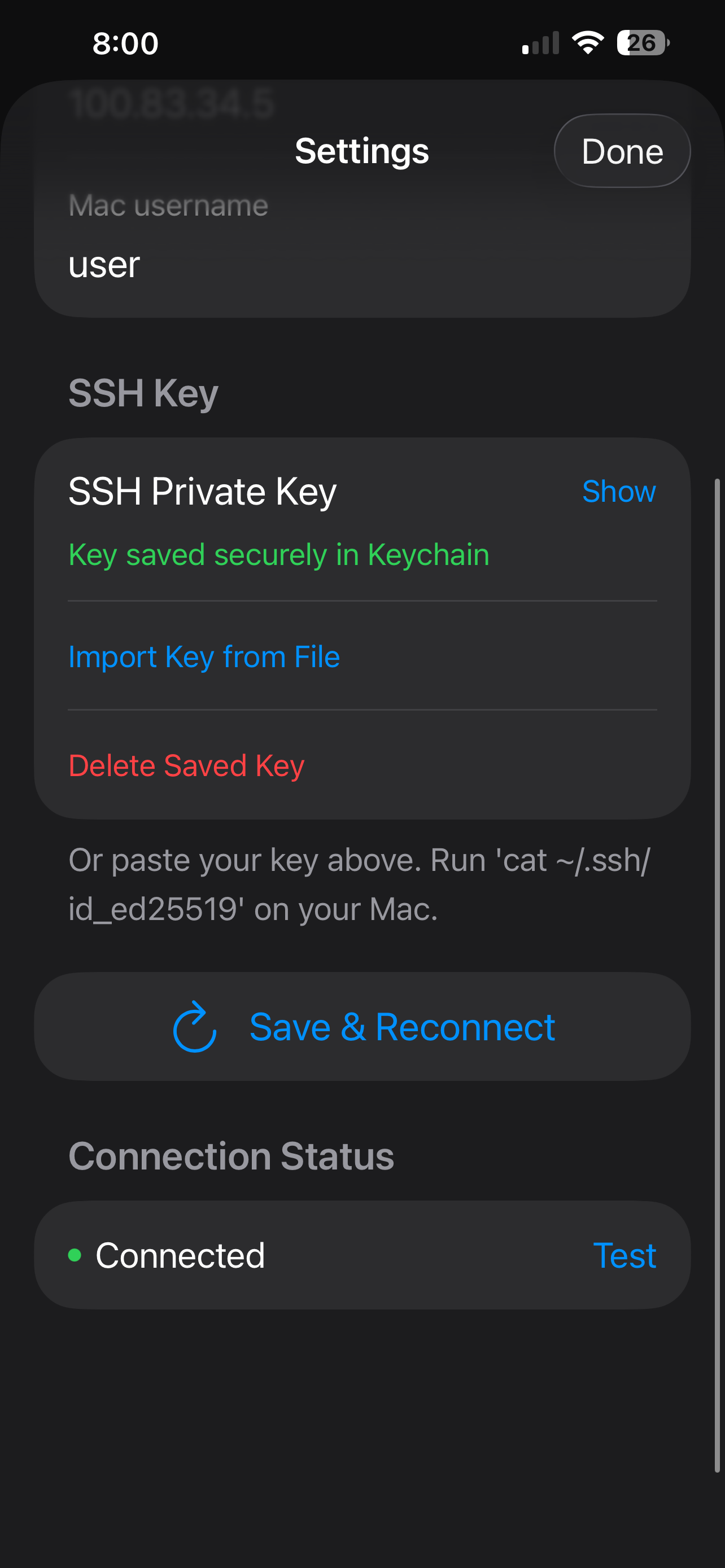
- Tailscale IP: the IP from Step 1 (something like
100.64.1.5) - Username: your Mac username (from Step 3)
- SSH Key: the key you generated in Step 4 (already selected by default)
Tap Connect. MacTap establishes an SSH session over Tailscale and shows a green status pill once connected. If it doesn't connect, the most common causes are:
- Tailscale not running on the Mac (check the menu bar icon)
- Remote Login not enabled (Step 3)
- Public key not added to
~/.ssh/authorized_keys(Step 4) - Wrong username (case-sensitive)
Step 6: Use it from your Watch
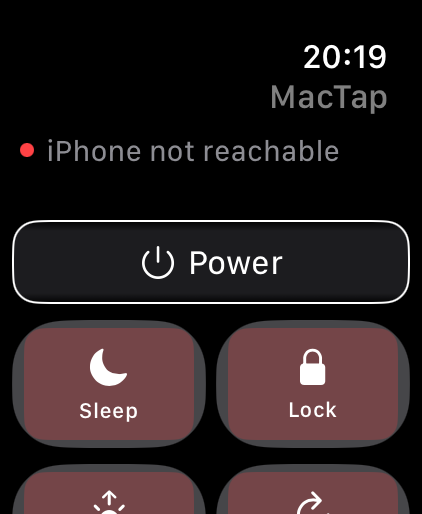
If you have an Apple Watch paired with the iPhone where MacTap is installed, the Watch app installs automatically. Open it and you'll see a list of preset commands. Tap any one — your Mac executes it within a second.
The Watch doesn't need its own Tailscale client or SSH connection. Commands relay through your iPhone via WatchConnectivity (a built-in Apple framework), and the iPhone handles the SSH session. As long as your iPhone and Watch are within Bluetooth range — about 10 metres, or anywhere on the same WiFi — the Watch works.
The 50+ commands MacTap ships with

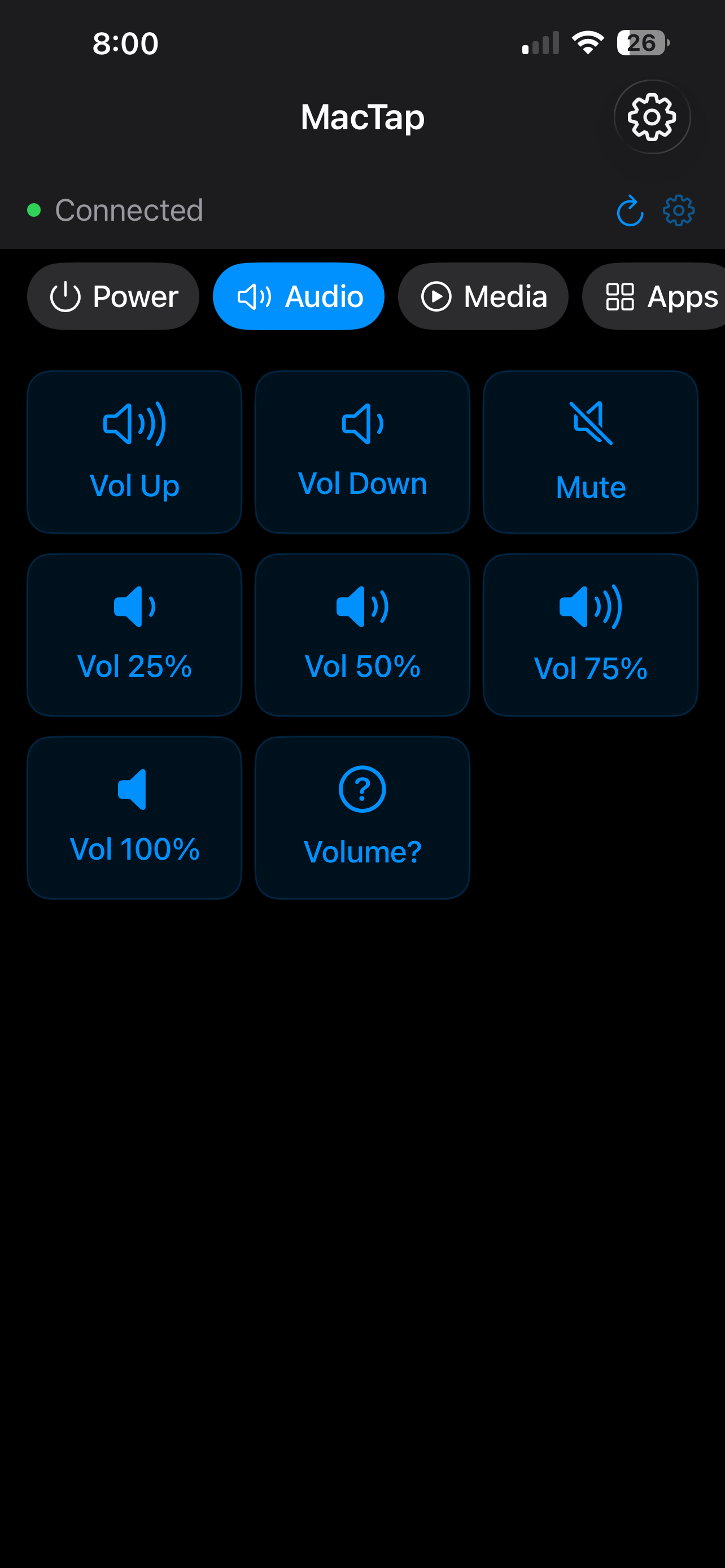
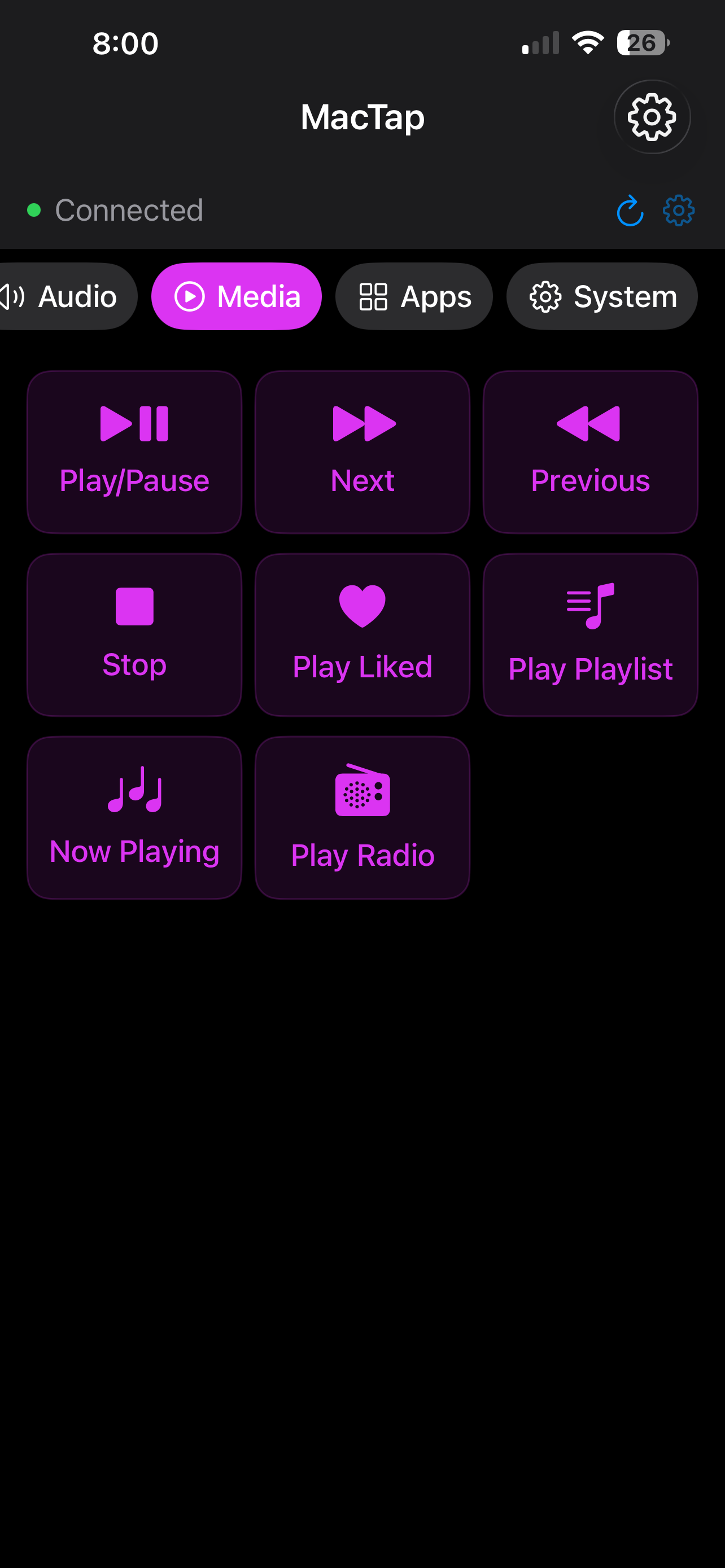
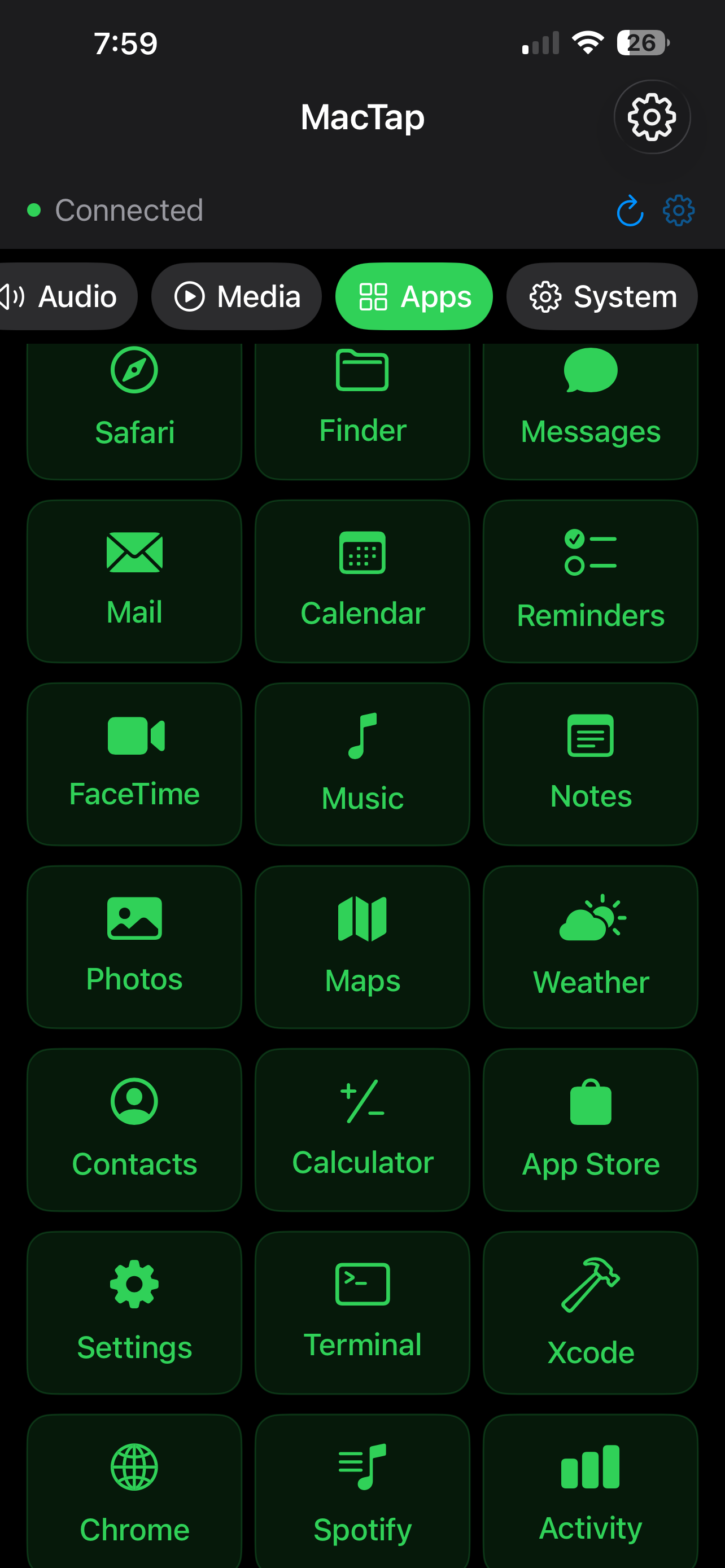
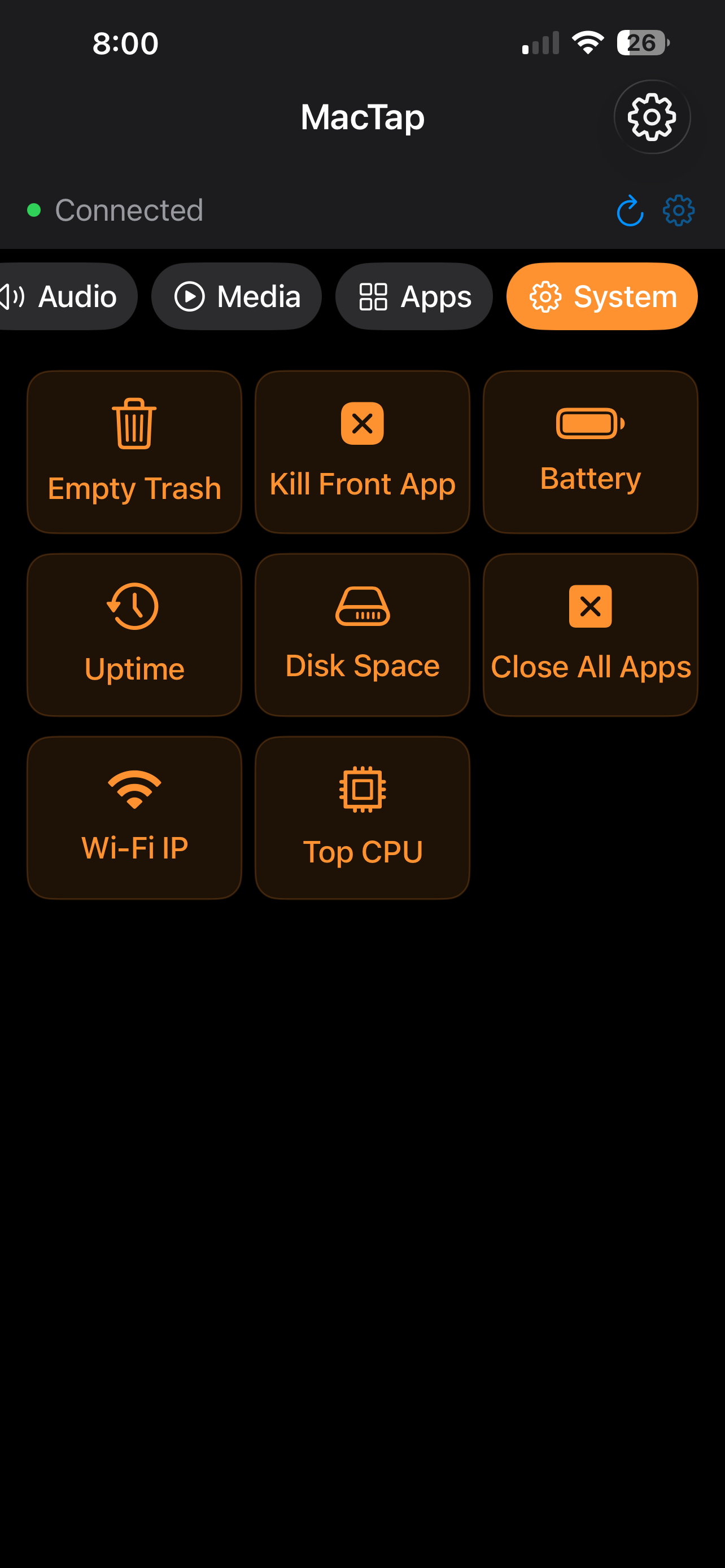
| Category | Commands |
|---|---|
| Power | Sleep, Lock, Wake, Restart, Shutdown |
| Audio | Volume up/down, Mute, jump to 25/50/75/100%, current level |
| Media | Play/Pause, Next, Previous, Stop, shuffle library, playlist picker, now playing |
| Apps | Launch Safari, Finder, Messages, Mail, Calendar, Music, Notes, Xcode, Chrome, Spotify, and 11 more |
| System | Empty Trash, kill front app, battery, uptime, disk space, Wi-Fi IP, top CPU process |
| Radio | 23 free internet radio stations across 9 genres |
Use cases
The "anywhere" thing isn't theoretical — here are the situations MacTap actually gets used for:
- Meeting room three floors up. You're presenting from a different machine, but your Mac at your desk is playing music. Tap Pause. Done.
- Coffee shop. Forgot to lock your Mac before leaving the house. Tap Lock. Done.
- Hotel room overseas. Need to restart your Mac because a build is wedged. Tap Restart. Done.
- Background music while you're cooking. Tap Play Liked from your wrist while your hands are full of garlic.
- Quick system check from the couch. Tap Battery or Disk Space. Result shows up as a Watch toast in under a second.
Why this is secure
Three layers, all independent:
- Tailscale's WireGuard tunnel. All traffic between your iPhone and your Mac is encrypted end-to-end with WireGuard. Tailscale's coordination servers (which only handle device discovery, not data) don't have access to your traffic. The data path is direct between your devices.
- SSH key authentication. Your private key never leaves the iOS Keychain. The Keychain is hardware-encrypted on every modern iPhone and protected by Face ID / passcode.
- No third-party servers. MacTap has no backend. There is no MacTap cloud service. Your Mac talks to your iPhone directly via Tailscale. We can't see your traffic because we don't operate any infrastructure to route it through.
How does this compare to other Mac remote apps?
| App | Works off home WiFi? | Setup | Cost |
|---|---|---|---|
| Bonjour-based "Mac Remote" apps (most of the App Store) | No — same WiFi only | Zero config | $0–$5 |
| Splashtop (screen mirroring) | Yes (their relay) | Account, paid plan for cellular | $5/month+ |
| Apple's Screen Sharing / Back to My Mac | Limited — same iCloud network | Built-in | $0 |
| Remote Desktop Manager + manual port forwarding | Yes | Router config, security risk | Free / paid tiers |
| MacTap + Tailscale | Yes, anywhere on Earth | 5 min, no port forwarding | One-time $29.99 |
Frequently asked questions
Does this work over cellular data?
Yes. Because MacTap uses Tailscale instead of local network discovery, it works on cellular, public WiFi, hotel networks, and any other internet connection your iPhone is on.
How much battery does Tailscale use on my iPhone?
Idle. Tailscale's iOS client doesn't drain noticeable battery when you aren't actively using it — under 1% per day in typical use. It only does work when there's active traffic.
What if my Mac is asleep?
If your Mac is fully asleep (lid closed on a laptop, no power), MacTap can't wake it remotely — this is a macOS limitation, not a MacTap one. But if you have Wake for network access enabled (System Settings → Energy Saver → Network) or your Mac is plugged into power, it stays reachable. MacTap shows a clear "connecting…" state and times out cleanly if the Mac doesn't respond, so you're not left guessing.
How much data does it use?
Each command exchanges a few hundred bytes of SSH traffic. A full day of heavy use is well under 1 MB. Negligible on any modern data plan.
Is this secure?
Yes — three independent layers: Tailscale's WireGuard encryption, SSH key authentication with the private key in iOS Keychain, and no third-party servers in the data path. See the Why this is secure section above for the detail.
Can I use it without an Apple Watch?
Yes. The iPhone app has the full command library. Apple Watch is the hero interface but optional.
Will it work if I switch WiFi networks or move between cellular and WiFi?
Yes. Tailscale automatically rebuilds the tunnel as your iPhone's network changes. You won't need to reconnect manually.
What happens if I lose my iPhone?
Your private key is in the iOS Keychain, protected by Face ID / passcode / iCloud Keychain encryption. If your phone is lost, the standard iOS Find My / remote wipe flow handles it. As an extra layer, you can revoke the device from your Tailscale admin console — that immediately cuts off network access from the lost device.
Stop being tied to home WiFi.
MacTap is a one-time $29.99 purchase. No subscription. No servers. No recurring costs.
Get MacTap on the App Store